Handle a bad day
What to do when low water, a broken cabin, dry dock or an outage gets in the way, and who to tell.
Some days the river decides. The water drops near Esna, the lock closes for a day, a cabin's air conditioning fails with guests booked in it, or Riverdesk itself cannot be reached. This guide shows how to change the schedule and the inventory safely, with the impact shown before anything changes, and what the office does during an outage. Read it on a quiet day, so you know where everything is when you need it.
Before you start
- Schedule changes are for owners. Blocks, stop sale and moving bookings can be done by reservations.
- An owner has set the Operations email (nightly outage pack) in Settings. Without it, the outage pack is not sent.
- You know who to call: the ship, your agencies' contacts, and the guests on direct bookings.
Low water or the Esna lock
When the water is too low near Esna, or the lock is closed or delayed, a sailing may not run, may run on other dates, or may start or end at another port. All three are done on Schedule.
Open Schedule and tick the departures concerned. Choose the ship at the top first. Each departure shows how many cabins are booked and held.
Choose the change. Cancel departures when the vessel will not sail. Move dates to shift by a number of days, earlier or later. Change port when the vessel will start or end elsewhere, for example embarking at Esna instead of Luxor; tick exactly one departure, then choose From port and To port, or Keep for the one that does not change.
Pick the reason. Choose it from the list, such as Low water level or Esna lock closure or delay, or Other… and type it. It is kept with the change and shown under Changes made.
Press Show impact. Riverdesk works out exactly what would change, without changing anything: how many departures and sailings change, which sailings are closed to sale, the active holds, the allotments, and every booking on those departures, with links.
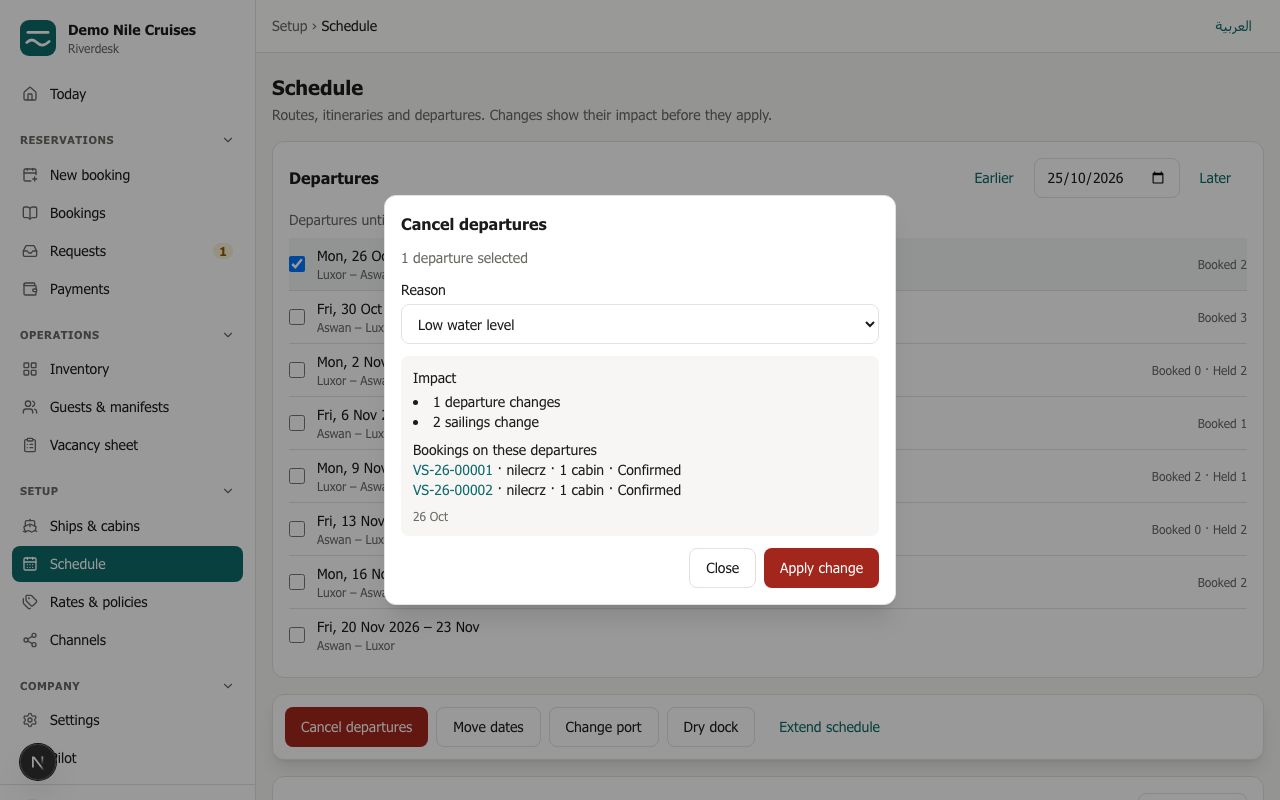
Cancel departures with the impact shown: departures and sailings that change, and the bookings on them Read the list, then press Apply change. Affected bookings appear on Today under Exceptions, connected platforms are told, and every touched sailing is updated.
Work through Today, booking by booking. For a guest who can sail another week, open the booking, press Change booking, choose the new sailing and press Price the change. For a guest who cannot travel, use Cancel booking with the reason Sailing cancelled.
A broken cabin
Open Inventory and tick the departures the cabin will miss. For a cabin out of use from Monday to Friday, tick each departure in those days.
Use Block cabins if the cabin is free. Choose the category and the number of cabins, and a reason such as Maintenance or repair. Only free cabins can be blocked, so this is for cabins nobody has booked yet.
Use Emergency block if the cabin is already sold. It takes the cabin out of sale even if that leaves too few cabins for the bookings. Sales stop on those departures for that category, and an exception appears on Today listing the bookings to move.
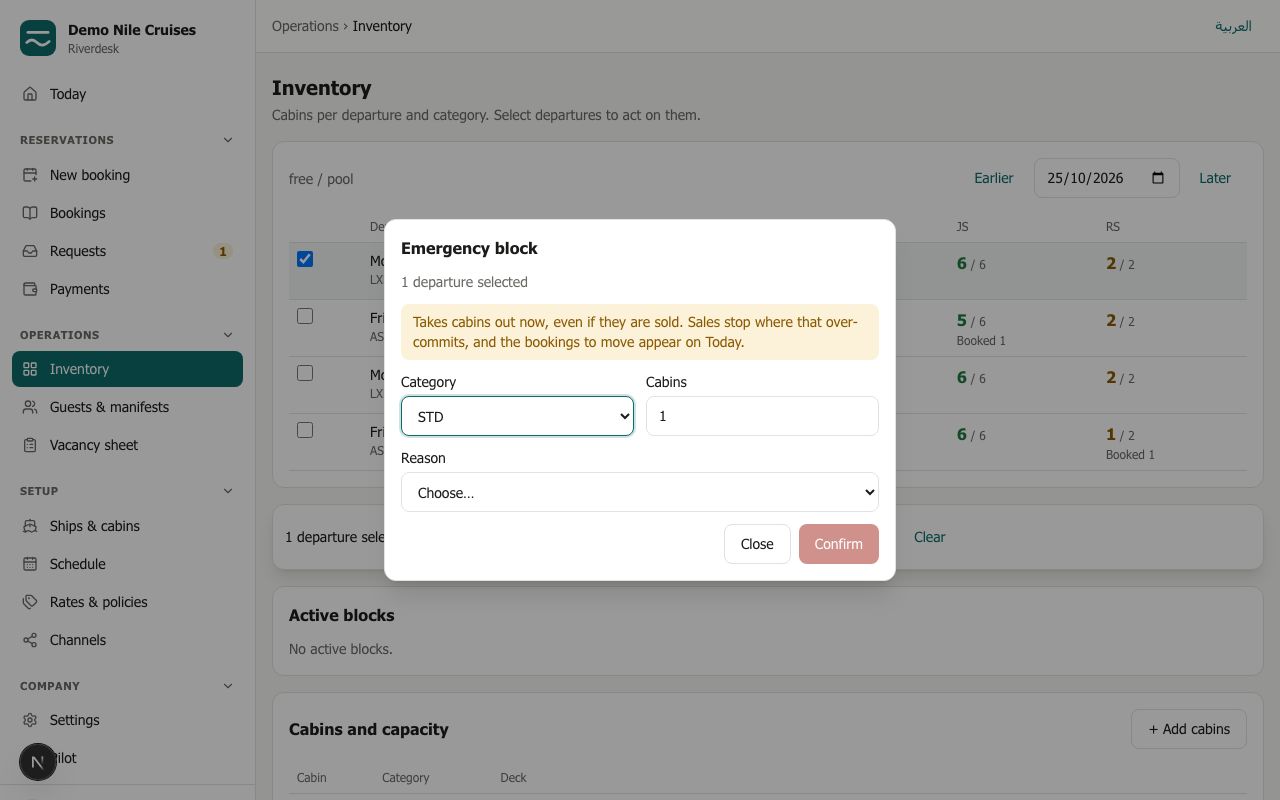
Emergency block takes cabins out now, even if they are sold, and stops sales where that over-commits Make room for the guests. On Today, open the exception. Move a booking to another category or date with Change booking, or offer another sailing. Once the bookings fit again, Riverdesk lifts the stop on sales by itself.
Check the cabin map for that departure. A block counts cabins of a category; it does not name cabin 214. On Guests & manifests, open Cabin map and make sure nobody is still placed in the broken cabin. If they are, pick the party and click a highlighted cabin.
Release the block when the cabin is fixed. Active blocks on Inventory lists every block with its dates and reason. Release puts the cabins back on sale.
For a cabin that will never come back, use Remove from service under Cabins and capacity instead. Riverdesk refuses it if too few cabins would be left for the bookings already taken, and names the departures concerned.
Dry dock
When the vessel goes out of service for maintenance, an owner uses Dry dock on Schedule. You do not need to tick departures: choose the ship, then From and To, and a reason. Show impact first, as above, then Apply change. Any booking in that period appears on Today, and is handled like a cancelled sailing.
If Riverdesk is unreachable
Every night, Riverdesk emails the operations address an outage pack: one PDF per vessel, with the free cabins on every sailing for the next 14 days, and for each departure who is aboard, with cabin, category, names and nationality. You can also make it at any time on Vacancy sheet with Outage pack (14 days).
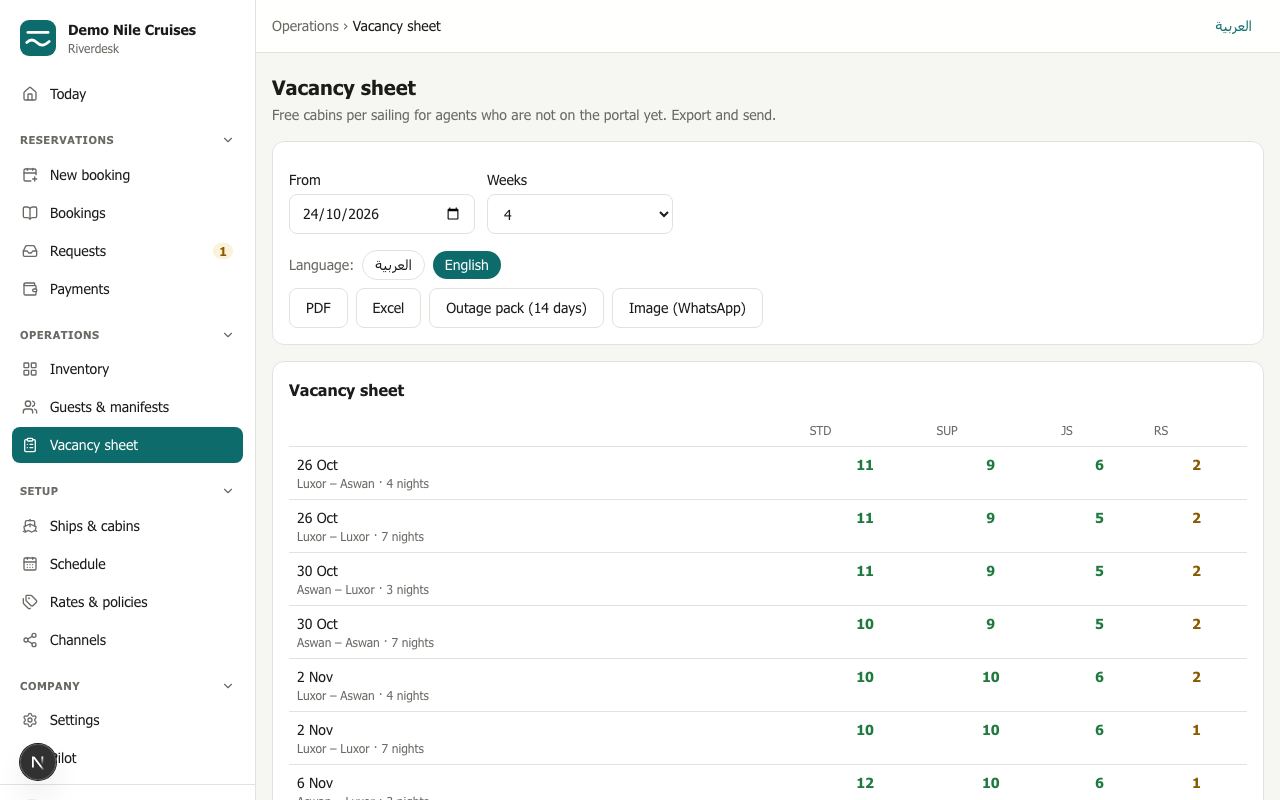
Open last night's outage pack. Use it to answer availability questions and to board guests. Passport numbers are not in it, because it travels by email.
Write down every booking you take. Guest, sailing, cabins, price, and how they will pay. Do not promise a cabin that the pack shows as the last one without saying it is subject to confirmation: an agency or platform may have taken it just before the outage.
Enter the bookings when Riverdesk is back. Use New booking as usual. If a cabin was sold meanwhile, Riverdesk refuses the booking rather than overbooking, and you offer another cabin or date.
Connected platforms are told the service is temporarily unavailable and to try again later. Riverdesk checks itself every five minutes and warns its team when something is wrong, so you do not need to report that it is down.
Who to tell
- The ship: the captain and front desk, for any change of dates, ports or cabins. Send a fresh rooming list.
- Agencies that are not connected: they learn nothing by themselves. Call or write with the new dates and their bookings' references.
- Connected platforms: told automatically about changed sailings, availability and bookings.
- Guests on direct bookings: call them, then send a new Voucher after any change.
What happens next
Every change you applied is listed under Changes made on Schedule, and every block under Active blocks. When Today is clear of exceptions, every guest has a place again.