Answer an agency request
Accept, decline or offer another sailing for an agency's request, before its deadline.
Some agencies sell your cabins on request: they ask for a sailing, and you decide. This guide shows how to read a request, give one of the three answers, and what the agency sees afterwards. You will do this several times a day in high season, and each request has a deadline.
Before you start
- You can sign in as Reservations or Owner.
- The agency has an on-request contract on Channels. See Connect a travel agency.
A request takes no cabins until you accept it. That is the point of on-request selling: you keep control of who gets your last cabins, but the agency is waiting, so answer quickly.
Read the request
Open Requests. You can also follow Requests waiting for an answer on Today, which shows the hours left for each. The nearest deadline comes first.
Check what is asked. Each request shows its reference and the agency, the embarkation date, the itinerary and nights, each cabin with its category and guests (
DLX 2+6means two adults and a six-year-old), and the price the agency's contract gives.Look at the time left. The badge shows the time left before the deadline. It turns red in the last two hours, and reads Past the deadline once the deadline has gone.
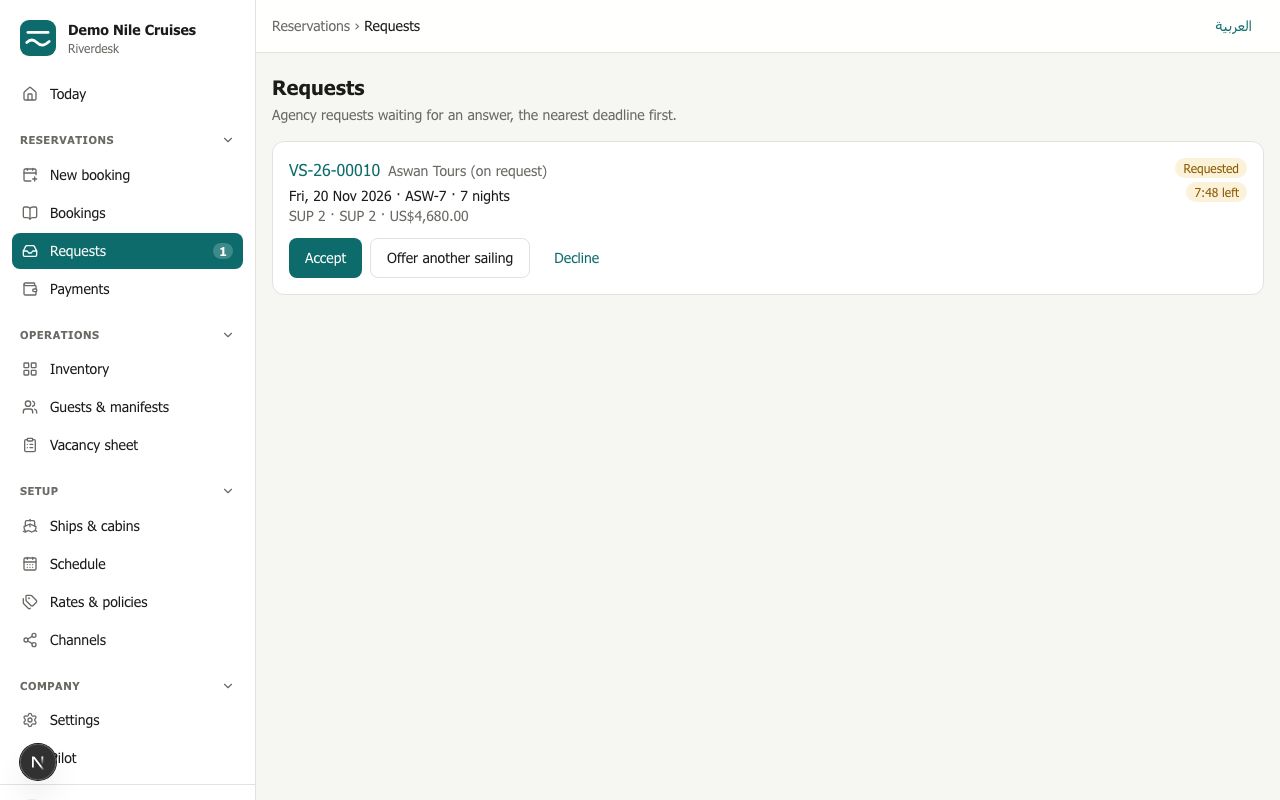
Open requests, nearest deadline first, with the time left on each
If you need more detail before deciding, open the reference: it leads to the booking page with the guests and the full price.
Give your answer
Choose one of the three answers. Each one is final for this request, so check the cabins on Inventory first if you are unsure.
Accept
- Press Accept. Riverdesk takes the cabins and confirms the booking in the same step, and shows Accepted with the reference. For an agency that pays you directly, the booking is held instead while the agency pays, as for any prepaid booking.
- If the cabins have gone in the meantime, Riverdesk says Not enough cabins left for this selection. and nothing changes. Offer another sailing instead.
Offer another sailing
Press Offer another sailing. Riverdesk lists sailings of the same ship from three weeks before to six weeks after the requested date that have room for the same cabins.
Choose a sailing and press Send offer. The same cabins and guests are offered on that date, at the price the agency's contract gives for it. The request then shows Alternative offered with the date and when the offer expires.
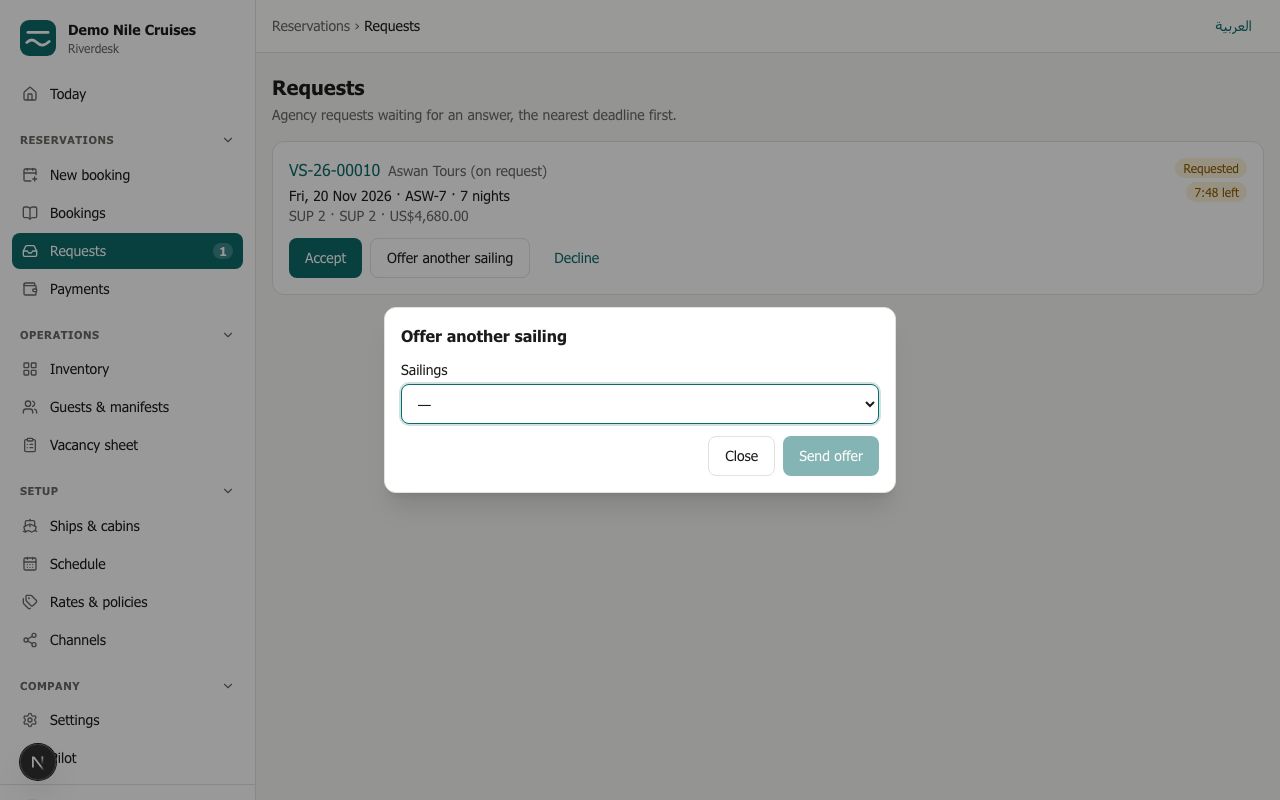
The Offer another sailing dialog, listing nearby dates with room for the same cabins
While the offer is open, its cabins are held for the agency, so nobody else can sell them. The agency has 48 hours to accept, the Alternative offer valid (hours) in Settings. If it accepts, the booking moves to the new sailing. If it does nothing, the offer expires and the cabins return to sale.
Decline
- Press Decline. A dialog asks for the reason.
- Choose a Reason (sent to the agency) and press Decline. Pick one from the list, such as No cabins left in that category or Dates not available, or type your own. Write it for the agency: they read it word for word.
What the agency sees
The agency is told of your answer straight away. An agency connected to Riverdesk through its own system receives the decision there: accepted, declined with your reason, an alternative offered with its expiry, or timed out. If your own staff entered the request on the agency's behalf from New booking, call or email the agency with the answer.
| Your answer | The request becomes | The agency |
|---|---|---|
| Accept | Confirmed (or held, prepaid) | Has a booking and can send its guest a voucher |
| Offer another sailing | Alternative offered | Accepts within 48 hours, or lets it lapse |
| Decline | Declined | Sees your reason |
| No answer in time | Expired | Is told it was not answered |
What happens next
An accepted request is an ordinary booking from now on: it appears on Bookings, and you complete the guests, print documents and handle changes there. A declined or expired request takes nothing, so there is nothing to clean up.