Prepare a departure
Complete guest details before the cut-off, give every party a cabin, export the manifest and rooming list, and board your guests.
In the two weeks before a sailing, the work moves from selling to preparing: every guest needs a name and a passport on file, every party needs a cabin number, and the ship needs a manifest and a rooming list. This guide follows MS Nile Pearl's Monday departure from Luxor to Aswan, from the first reminder on Today to the morning guests walk up the gangway.
Before you start
- The departure has confirmed bookings on it.
- The vessel's cabins exist on Ships & cabins, each with its number, category and deck.
- You sign in as reservations or as an owner. Finance can view the cabin map and download the rooming list, but cannot move guests or download the manifest.
- An owner has checked Assign cabins (days before departure) in Settings. It is 7 days by default, and this guide assumes 7.
Complete guest details before the cut-off
The cut-off is the day Riverdesk stops accepting changes to guest details, so that the manifest stops moving. With the default setting it falls 7 days before embarkation. Bookings start appearing on Today a week before that, so you have time to chase.
Open Today and look at Guest details missing before the cut-off. Each line is a confirmed booking whose guests still lack a name or a passport. The list starts about two weeks before embarkation, so a Monday departure shows up on the Monday two weeks before.
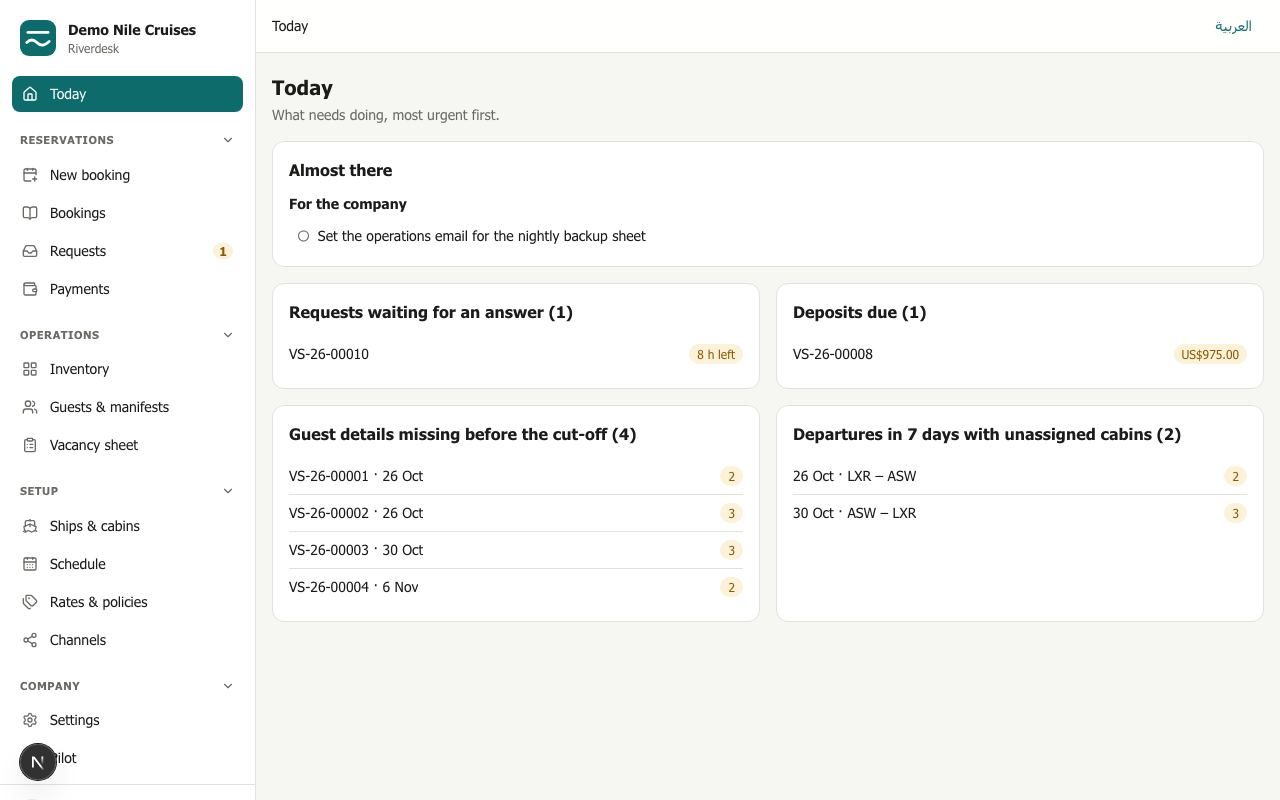
Today lists bookings with guest details missing, next to departures that still have unassigned cabins Ask the agency or the guest for what is missing. For an agency booking, write to the agency with its own reference: "Booking for 2 guests, MS Nile Pearl, 9 March: please send both names and passport numbers by Friday." For a direct booking, call or message the lead guest.
Open the booking and press Edit guests. Fill in the first and last name, nationality, date of birth and passport number of each guest, choose the cabin each one is in, and mark the lead guest. Press Save guests. The line disappears from Today once nothing is missing.
- Check the dates of birth of children. If a date of birth shows that a child is older than the age the booking was priced for, the booking appears under Exceptions on Today. It is not repriced automatically: decide whether to charge the difference with Change booking or to accept it.
Give every party a cabin
A booking reserves a category, such as Standard or Deluxe. The physical cabin, such as 204, is chosen later, so that the office can sell freely and still fit everyone in at the end.
Let the automatic assignment run. Every night, departures inside the cut-off get their cabins. Riverdesk keeps a party in the same cabin for its whole cruise whenever it can, including guests who sail Luxor to Aswan and stay on for the return. You do not need to do anything.
Or press Assign cabins now. On Guests & manifests, pick the departure in the list. Assign cabins now does the same assignment at once, for that departure only. The message says how many cabins were assigned, how many parties change cabin mid-cruise, and how many could not be placed.
Watch Departures in 7 days with unassigned cabins on Today. A departure stays on this list until every booked cabin has a number. On Guests & manifests, each departure also shows how many parties are still without a cabin.
Use the cabin map
The cabin map shows the departure the way the ship is laid out, which is the easiest way to honour a request such as "next to our friends" or "a quiet cabin, away from the engine".
Switch from List to Cabin map. The buttons are above the guests. The map shows each deck, with its cabins in cabin-number order, each with its number and category. White cabins are free, green-blue cabins have guests (the lead guest's name, how many, and whether they boarded earlier or stay on), red cabins are blocked, and grey dashed cabins are out of service on that date.
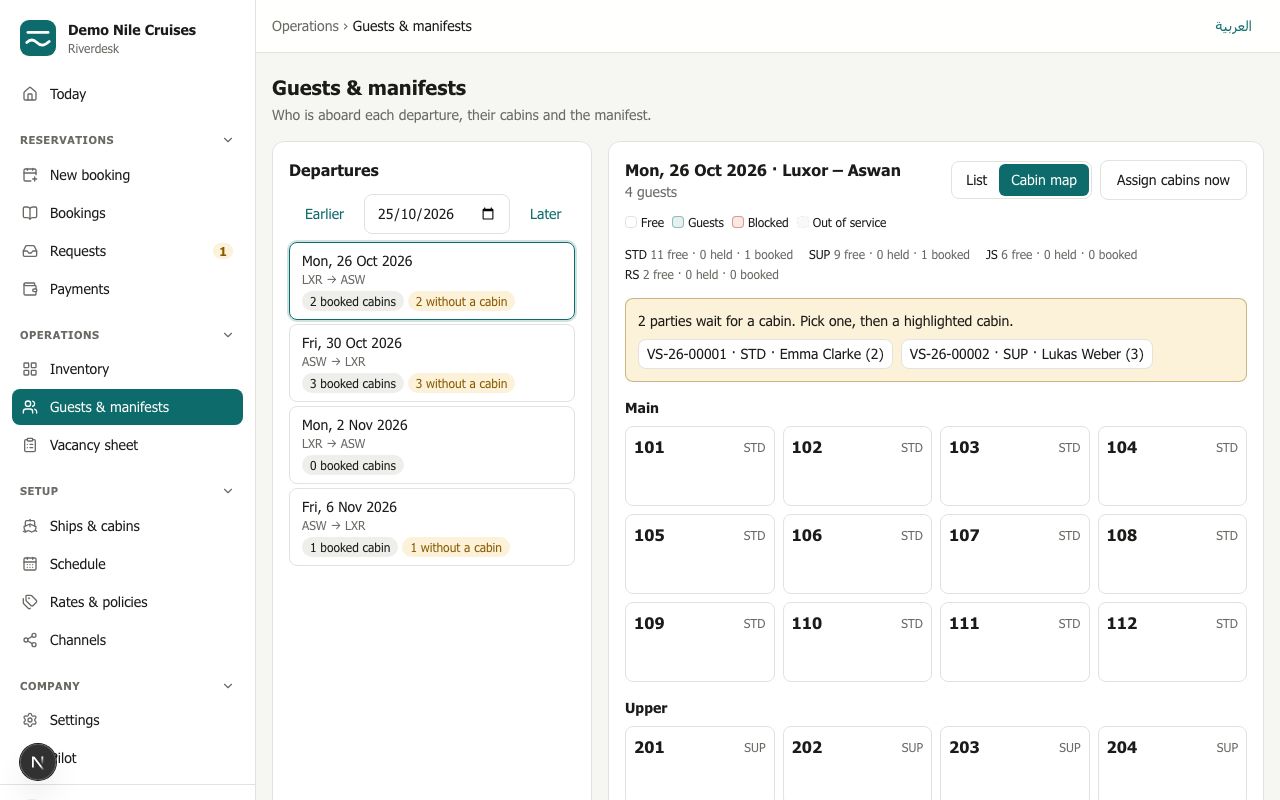
The cabin map of one departure: each deck in cabin-number order, with free, occupied, blocked and out-of-service cabins Pick a party. Click a cabin with guests, or a party in the yellow box of parties waiting for a cabin. The cabins that fit that party on every night of its cruise light up in green, and Riverdesk tells you how many there are.
Click a highlighted cabin. The party moves there for its whole cruise, in one click. Two parties can never share a cabin on the same departure: Riverdesk only highlights cabins that are really free.
To undo, press Take off this cabin. The party goes back to waiting, and the next automatic assignment places it again.
Export the manifest and the rooming list
Choose the language next to the export buttons. Arabic or English, depending on who will read it: the port authority, the ship's front desk or the housekeeping team.
Download the Manifest (with passports) as PDF or Excel. It lists every guest with cabin, category, nationality, date of birth, passport number, booking and cruise. Only owners and reservations can download it; each download is recorded, and the file is deleted after a day.
Download the Rooming list as PDF or Excel. It lists each cabin with its guests, adults, children, booking and agency, without passports, so it is safe to hand to the crew.
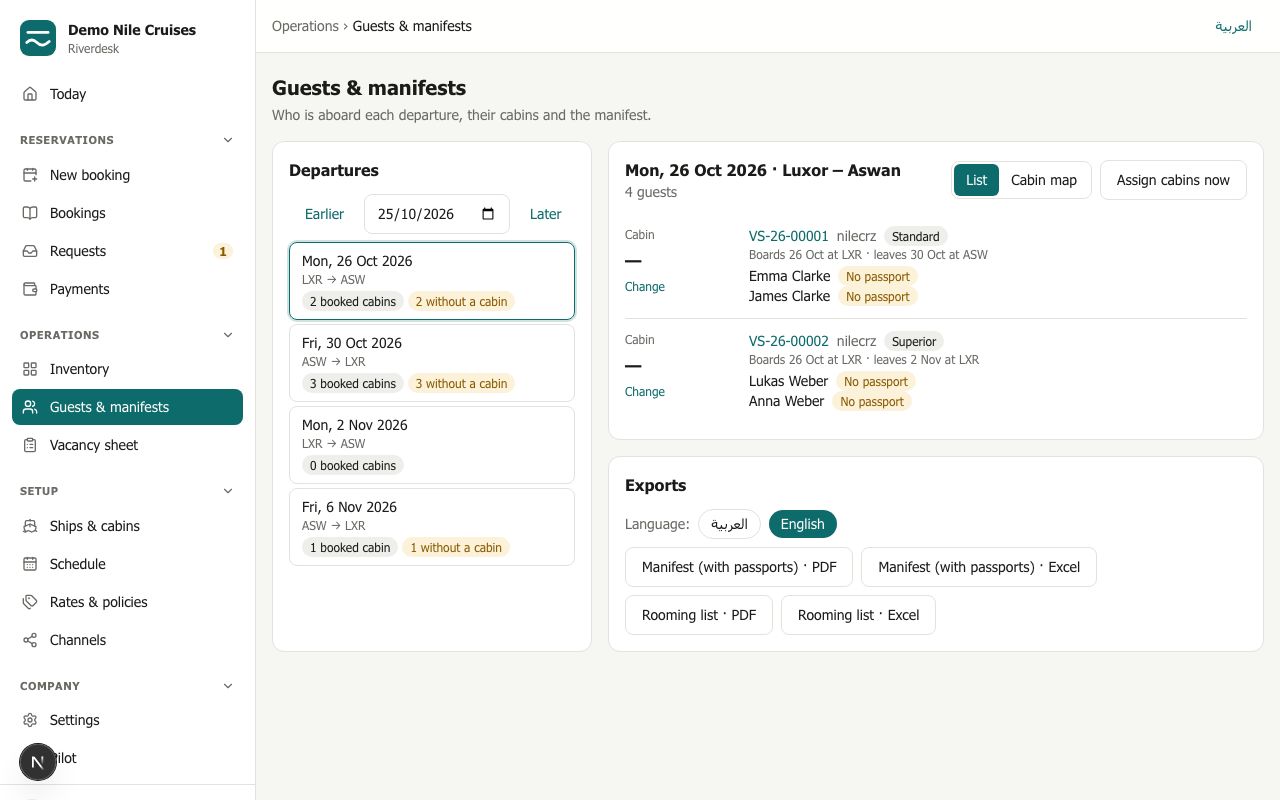
A departure on Guests & manifests, with its guests, their cabins and the export buttons
The day of embarkation
Make the manifest and rooming list again that morning. Late changes, such as a party moved on the cabin map, then appear in the files you print.
Check who is boarding and who is already aboard. On the Aswan to Luxor departure, guests on a 7-night cruise from Luxor are already in their cabins. The cabin map marks them boarded earlier, and guests continuing on are marked stays on.
Check proof of residency where it is needed. Guests on a resident or local rate must show residency or ID at boarding. Their voucher already reminds them.
What happens next
When guests leave the ship, the booking is complete. Passport numbers and dates of birth are erased automatically 90 days after disembarkation, unless an owner has set a different number of days. Names stay, for the accounts.