Take a phone booking
Take a booking while the guest is on the line, then send them their voucher.
A guest calls, or messages on WhatsApp, and wants a cabin. This guide takes you from the first question to a booking with a reference, and then to the voucher you send the guest. The New booking screen is built for the call itself: once you know the dates and the cabins, a booking takes about a minute.
Before you start
- You can sign in as Reservations or Owner.
- The ship is set up and has prices: Getting started on Today shows no steps left. See Set up your company.
- For the voucher: an owner has filled in the emergency phone and voucher note in Settings.
Find the right sailing
Open New booking. Work from top to bottom; the price appears as soon as you pick a sailing.
- Choose who the booking is for under Booked for. Choose Direct guest for someone who calls or walks in. If you are booking on behalf of an agency, choose the agency instead: its contract then sets the price, how payment works, and whether the booking is confirmed at once or sent as a request. If you have more than one ship, choose the Vessel too.
- Choose the Market. It says who the price is for, such as International or Egyptian resident. Only markets this channel sells appear. When a market needs proof, the screen says Guests show proof of residency or ID at boarding: tell the guest now, so it is not a surprise at the gangway.
- Describe each cabin under Cabins. Pick the Category, the number of Adults, and the Child ages on the embark date, separated by commas, for example
4, 8. For a family taking two cabins, press + Add cabin and describe the second one.
- Pick the itinerary, then the sailing. Under Sailings, choose the itinerary, for example LXR-4 for 4 nights from Luxor, or All. Each sailing shows how many cabins of your categories are free; sailings that cannot take your cabins are greyed out. Use Earlier and Later to move through the dates while the guest decides.
Confirm the booking
Type the Lead guest. Fill in the First name and Last name, and the Nationality if you know it, picked from the list with the most common countries first. For an agency booking, add the Agency reference so both sides can find the booking later. The other guests' names can wait; you add them on the booking.
Read the price lines and the total back to the guest. Each cabin has its own lines: adults at their occupancy, each child at the share the child policy gives. The total is in the rate plan's currency, for example USD for international guests.
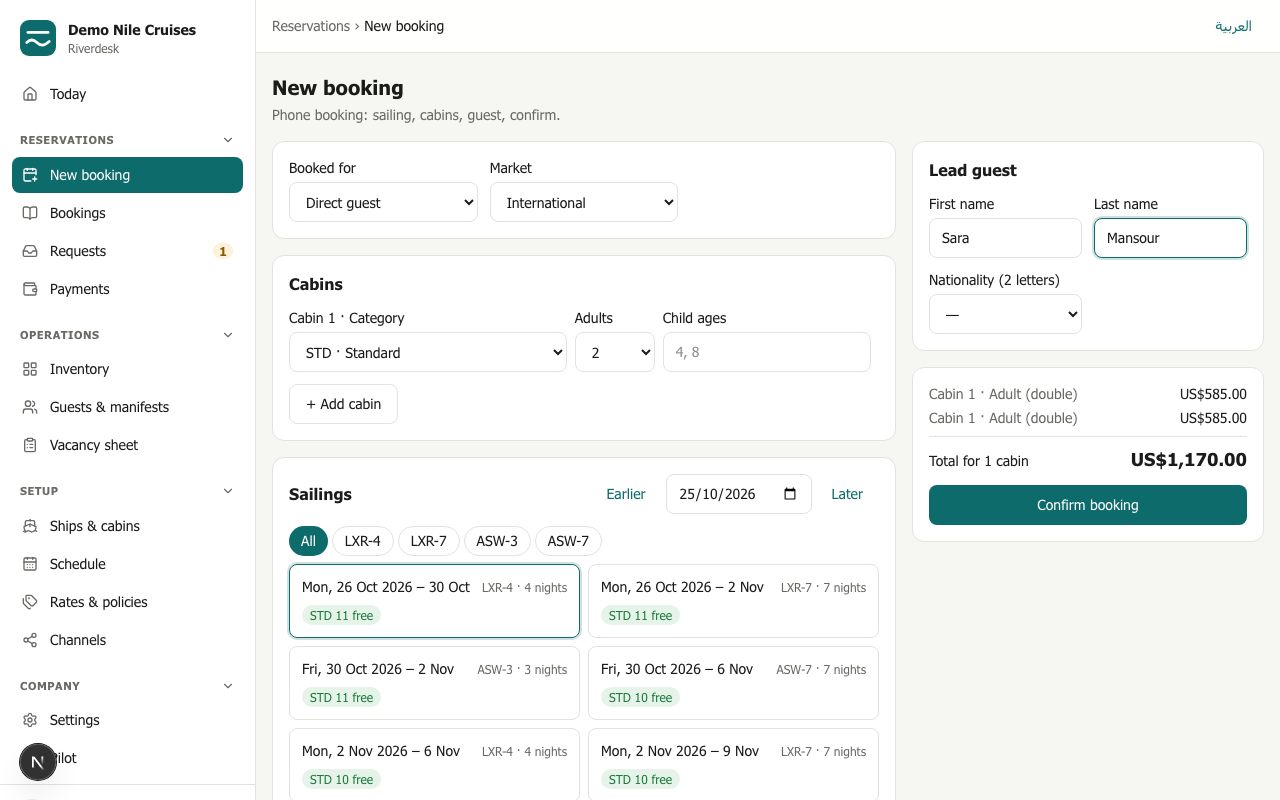
New booking with a sailing picked, the lead guest typed and the price lines shown Press Confirm booking. You land on the new booking. Its reference, for example
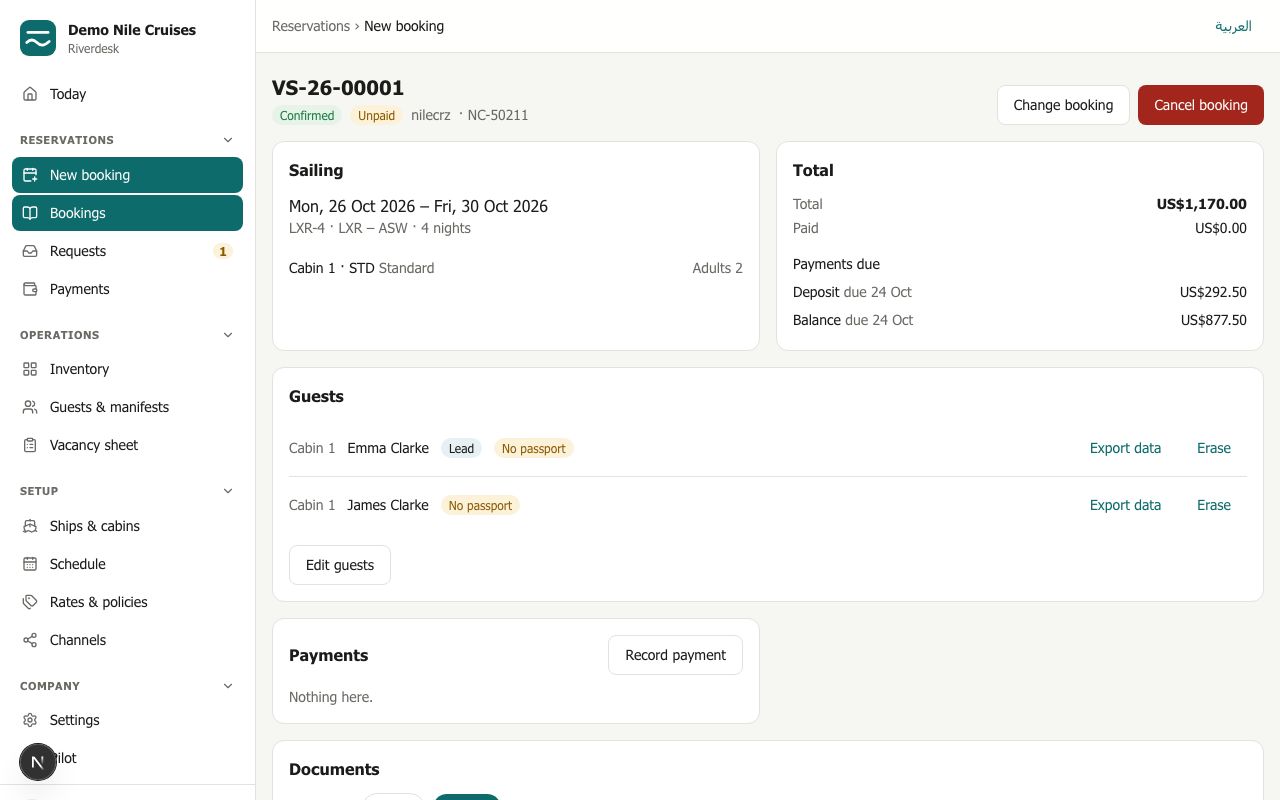
VS-26-00610, is what the guest quotes from now on, so give it to them before you hang up. Pressing the button twice never makes two bookings.
If someone else takes the last cabin at the same moment, you see Not enough cabins left for this selection. Pick another sailing or category and try again.
What the booking's status means
| Booked for | What you see | What to do |
|---|---|---|
| Direct guest | Waiting for payment | Ask for the deposit. The cabins are held while the guest pays |
| An agency that collects payment or has credit | Confirmed | Nothing more; send the agency copy of the voucher |
| An agency on request | Requested | Answer it on Requests before the deadline |
A direct booking keeps its cabins for the company's Unpaid booking held setting, 24 hours unless an owner changed it in Settings. The booking page shows when the hold expires. As soon as the deposit is recorded, the booking becomes Confirmed. If nothing is paid in time, the cabins go back on sale.
Send the voucher
- Open the Documents card on the booking and choose the Language. Documents are available once the booking is waiting for payment or confirmed. Pick Arabic or English to suit the guest.
- Press Voucher. It is prepared in a few seconds and downloads as a PDF. It shows the booking reference, ship, cruise, embarkation and disembarkation with ports and times, the cabins and guests, what is and is not included, your boarding note, the emergency phone, the totals and a day-by-day itinerary.
- Send the PDF to the guest yourself, by email or WhatsApp. Riverdesk prepares the file; it does not send it for you. For an agency, use Voucher (agency copy, no prices) instead, so the agency can pass it to its guest without showing your price.
You can also download the Payment schedule, which shows the deposit and balance with their due dates, and the Cancellation terms the booking was sold under. Documents are kept for a week, and you can make them again at any time.
What happens next
Once the deposit is in, the booking appears on Today again only when something needs a person: the balance falling due, guest details missing before the cut-off, or a change to the departure. Before the cruise, add every guest's name, date of birth and passport with Edit guests on the booking.