Connect a travel agency
Add an agency or platform as a channel, give it a contract per vessel, set aside an allotment, and connect online platforms through the API.
Every agency that sells your cabins is a channel in Riverdesk, with a contract per vessel that says how it sells, how it pays and at what price. This guide sets up Aswan Tours, an agency that sells MS Nile Pearl, and then covers what changes for an online platform that connects through the API. Do it when you sign a new agency, or when an agency's terms change.
Before you start
- The vessel is ready to sell: cabins, itineraries, departures, seasons and at least one rate plan with prices. Today shows Getting started until that is done.
- You have the agency's terms in front of you: who collects the money, its credit limit if any, its commission or markup, and which rate plans it sells.
- You sign in as an owner. Adding channels and contracts is for owners; reservations can add allotments.
Add the channel
Open Channels and press New channel. The screen lists every channel already set up, starting with your own office, the back office.
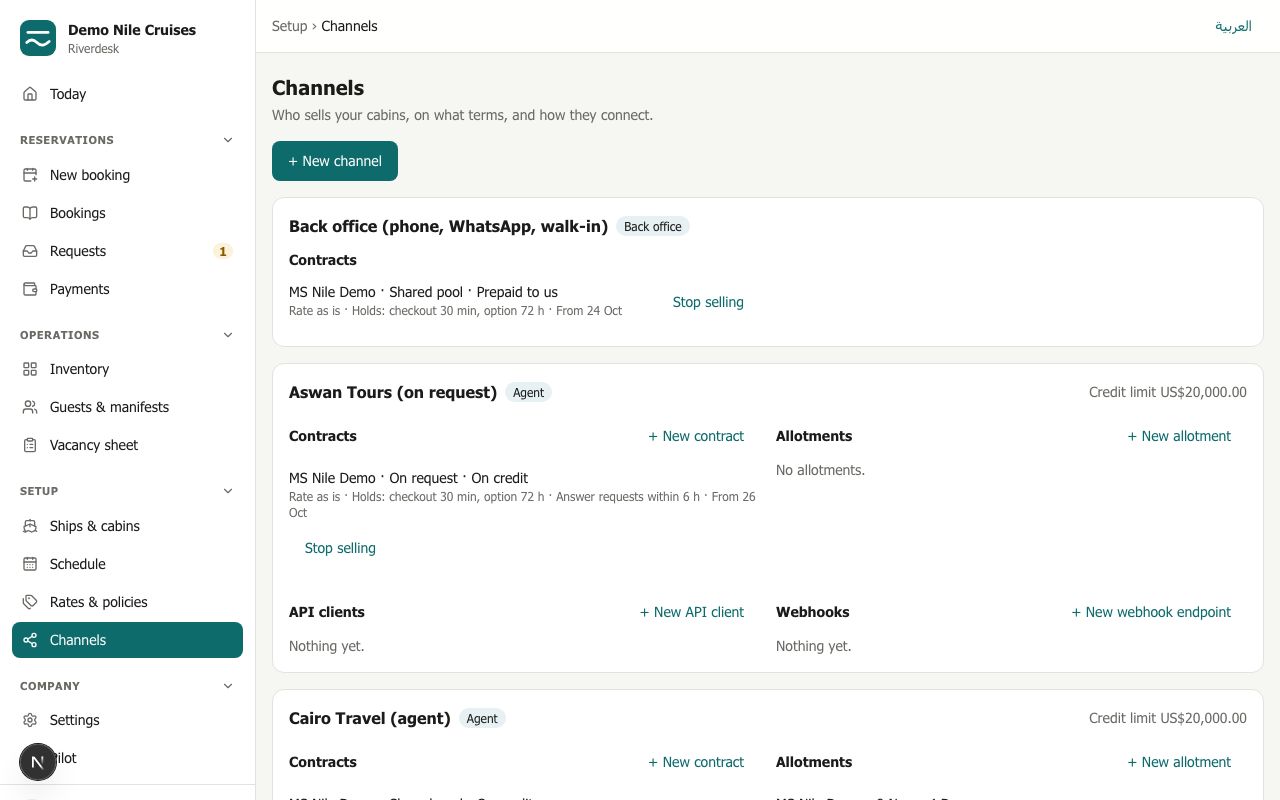
The Channels screen: each channel with its contracts, allotments, API clients and webhooks Fill in Name, Code and Type. Name: Aswan Tours. Code: a short code such as
ASWT, used in lists and reports. Type: Agent for a travel agency, Portal for an online platform (a booking engine, an online travel agency or nilecrz), API for another system that connects directly.Enter a Credit limit if the agency pays later. This is the most the agency may owe you at any time. Leave it empty if the agency never books on credit.
Give it a contract
A contract is per vessel. An agency that sells two of your ships has two contracts, which can have different terms.
Press New contract under the channel. Choose the Vessel, here MS Nile Pearl, and the date the terms start in From.
Choose the Allocation. This decides where the agency's cabins come from.
Allocation The agency… Use it for Shared pool books from the same free cabins as your office Most agencies and platforms Allotment books from cabins set aside for it on chosen departures A large agency that commits to a block of cabins for a season On request sends a request; your office answers within a deadline, or offers another option Agencies whose bookings you want to check first Choose the Payment. Channel collects: the agency or platform takes the guest's money and settles with you, and the booking is confirmed at once. Prepaid to us: the guest pays you directly, and the booking is confirmed when the deposit is paid. On credit: the agency pays you later, and the booking is confirmed at once while the agency is within its credit limit.
Set the Price. Rate as is sells at your rate plan's price. Markup adds a percentage on top, so the agency's price is higher. Commission shows the agency its share as a percentage of the price; it is information for the agency and is not added to the total. Type the percentage, for example 10.
Tick the Rate plans the contract sells. An agency selling to European guests might sell only your International (EUR) plan. All cabin categories of the vessel are included. You need at least one plan.
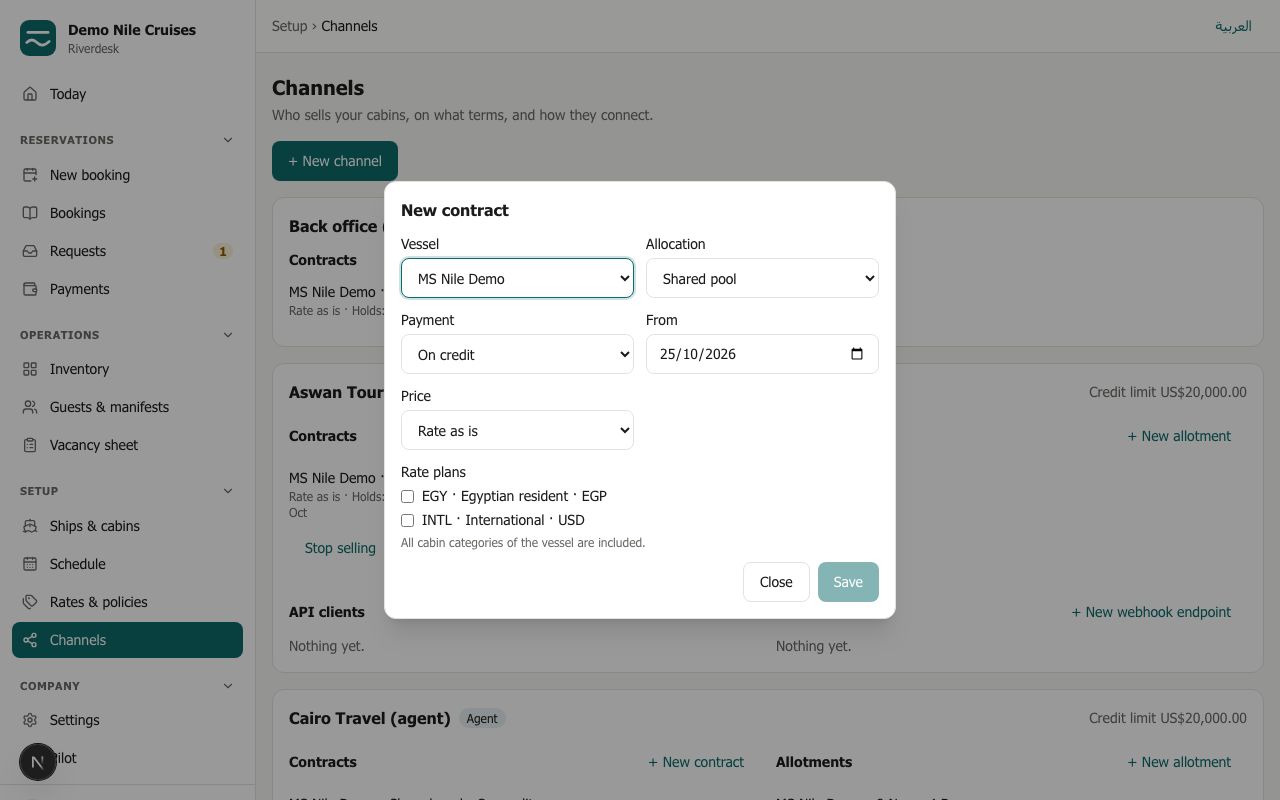
New contract: vessel, allocation, payment, price and the rate plans the channel sells
The contract is checked on every booking, whether it is made by your office for the agency or by the agency's own system. An agency never sees another agency's holds or bookings.
Set aside an allotment
If the contract is an allotment, give the agency its cabins.
Press New allotment. Choose the vessel and the dates, From and To. The allotment covers every departure in that range.
Enter the Cabins per category. For example 4 Standard and 2 Deluxe. They come out of your free cabins on each of those departures. Like holds, an allotment is a count of cabins in a category, not specific cabin numbers.
Set the release days. Unused cabins return to general sale automatically that many days before each departure. The default is 21 days, set in Settings. Aswan Tours then has until three weeks before each sailing to fill its cabins.
Pause an agency
Stop selling on the channel stops that one agency from holding or booking, without touching the others. Use it when an agency is over its credit or you are renegotiating. Its existing bookings stay as they are. Resume selling reopens it.
Connect an online platform
A platform such as a booking engine, an online travel agency or nilecrz connects its own system to Riverdesk, so it checks availability, holds and books by itself. Set up the channel and contract as above, with type Portal or API, then:
Press New API client and give it a name. Riverdesk creates a Client ID and a secret. The secret is shown once, with a Copy button. Send it to the platform's developers through a safe route, never in a group chat.
Press New webhook endpoint. Enter the URL the platform gives you. Leave Event types (blank = all) empty unless the platform asks for specific ones. The signing secret is also shown only once.
Use the Delivery log to check messages arrive. Each message shows as delivered, pending or failed, with Send again to replay one.
Send the platform's developers the Channel API guide. It explains sign-in, availability, holds, bookings and webhooks, and how to test in the sandbox before going live.
Agencies that are not connected
Many agencies still ask "what do you have next week?" on WhatsApp. For them, use the Vacancy sheet.
Choose From and the number of Weeks (1 to 8).
Send it as PDF, Excel or Image (WhatsApp). It shows each sailing with its free cabins per category, in green, amber or red.
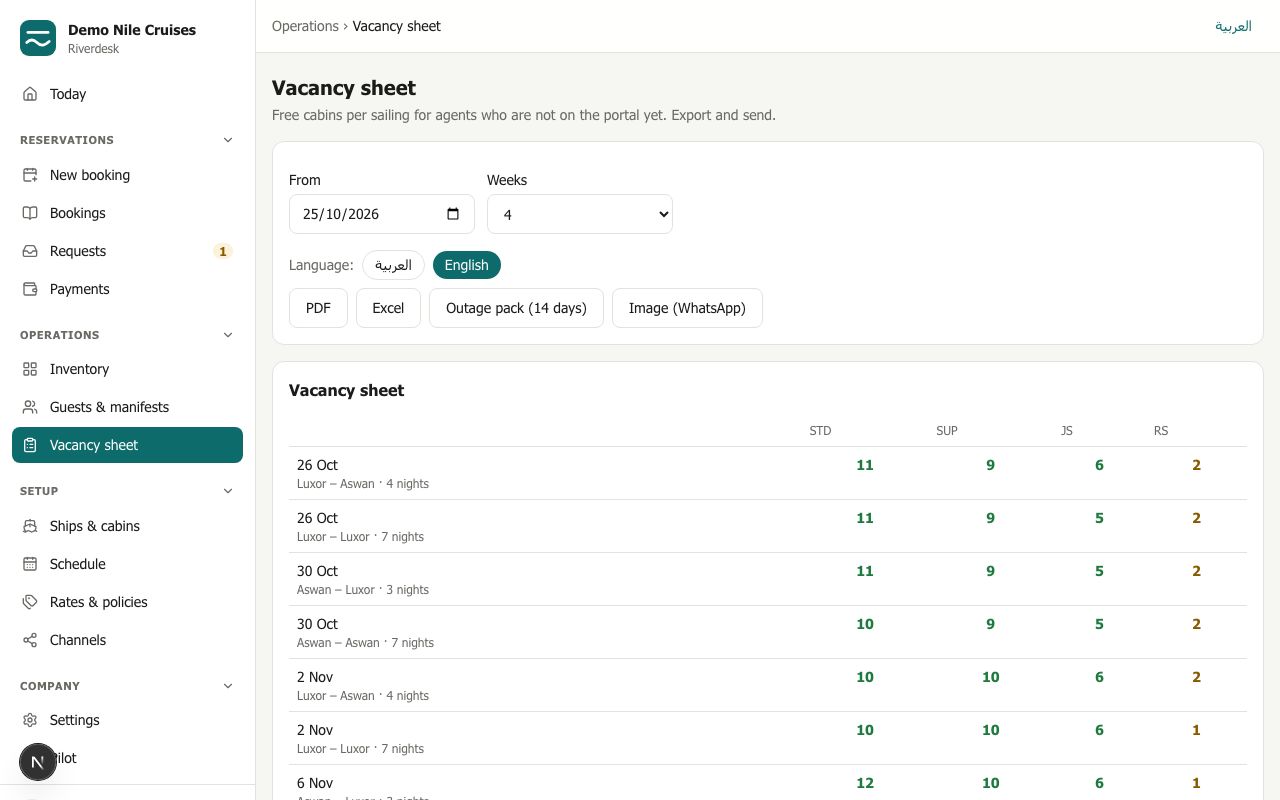
The vacancy sheet: free cabins per sailing and category, ready to send as PDF, Excel or an image
When the agency answers, take the booking on New booking under its channel, so the contract's price and payment terms apply.
What happens next
The agency's bookings appear on Bookings with its channel, and its requests on Requests and Today. Allotments return to sale on their own. Platforms are told about changes through their webhooks.