Change or cancel a booking
Move a booking to another sailing or category with the price shown first, correct guests, and cancel with the penalty and refund worked out for you.
Plans change. A guest wants to sail a week later, an agency asks to upgrade a couple to a Deluxe cabin, or a family cancels after an illness. This guide shows how to change a confirmed booking with the new price shown before anything is applied, how to correct guest details, and how to cancel with the penalty and refund worked out for you.
Before you start
- The booking exists and you can find it on Bookings by its reference, the agency's reference, the guest's name or the agency.
- To change sailing or cabins, the booking must be Confirmed.
- To change or cancel, you sign in as reservations or as an owner. To record a refund, you sign in as finance or as an owner.
Find the booking
Open Bookings and search. Type the reference, for example
VS-26-00001, or the agency's own reference, or the lead guest's surname. Filter by status or embark date if the list is long.Open the booking and read it top to bottom. The booking page shows the sailing and its cabins, the total with what has been paid and what is still due, the guests, the payments, the documents and the revisions.
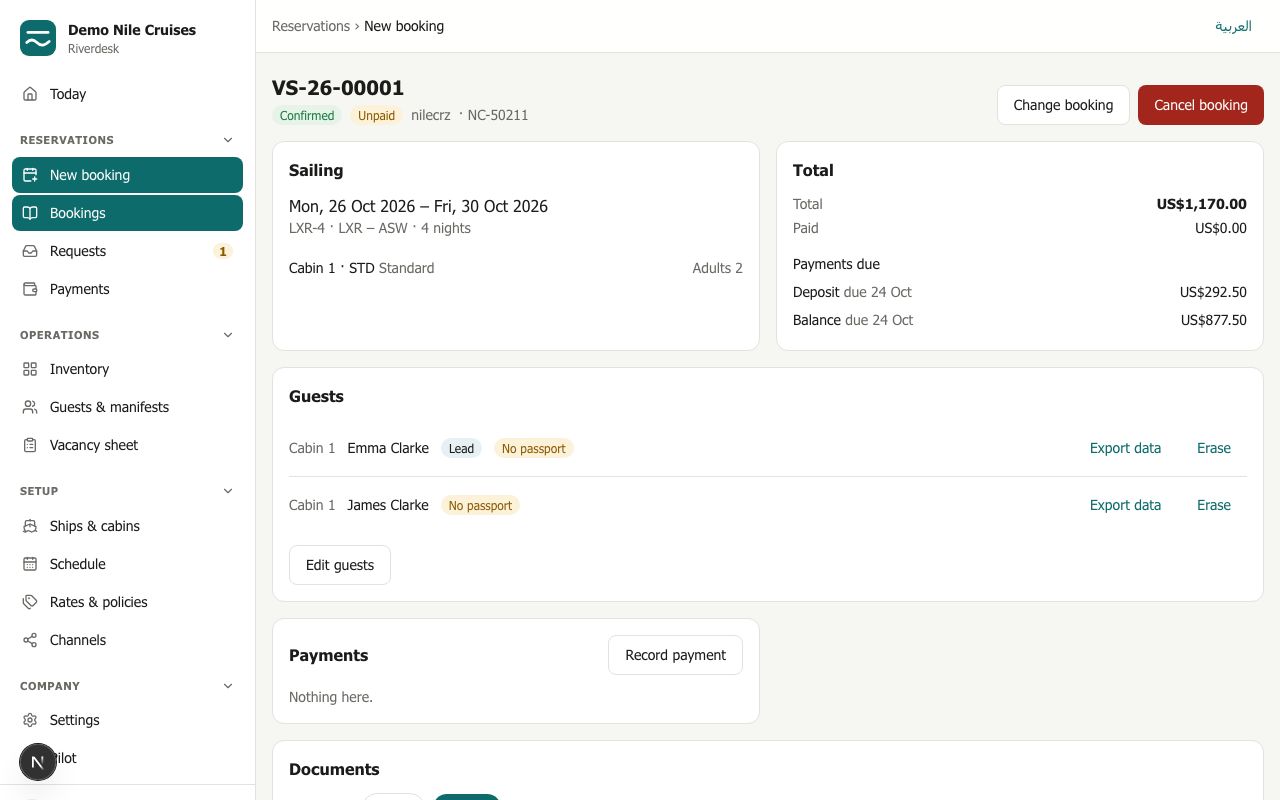
A confirmed booking: sailing, cabins, totals, payments due, guests and revisions
Change the sailing or the cabins
Riverdesk always prices a change first and applies it only when you say so. Nothing is held or released while you look.
Press Change booking. The dialog Change sailing or cabins opens. It is only offered on confirmed bookings.
Choose the New sailing, or Keep the current sailing. The list shows the vessel's sailings from four weeks before to eight weeks after the current embarkation, with their dates, itinerary and nights. To move a couple from MS Nile Pearl's 9 March sailing to 16 March, choose 16 March.
Change the cabins if needed. For each cabin you can change the category, the number of adults and the children's ages. To upgrade from Standard to Deluxe, change the category of that cabin.
Press Price the change. Riverdesk shows the New total, the Difference from the current total, and the Amendment fee from the booking's cancellation and amendment policy. The fee depends on what changes (date, category, guests per cabin) and how close the sailing is.
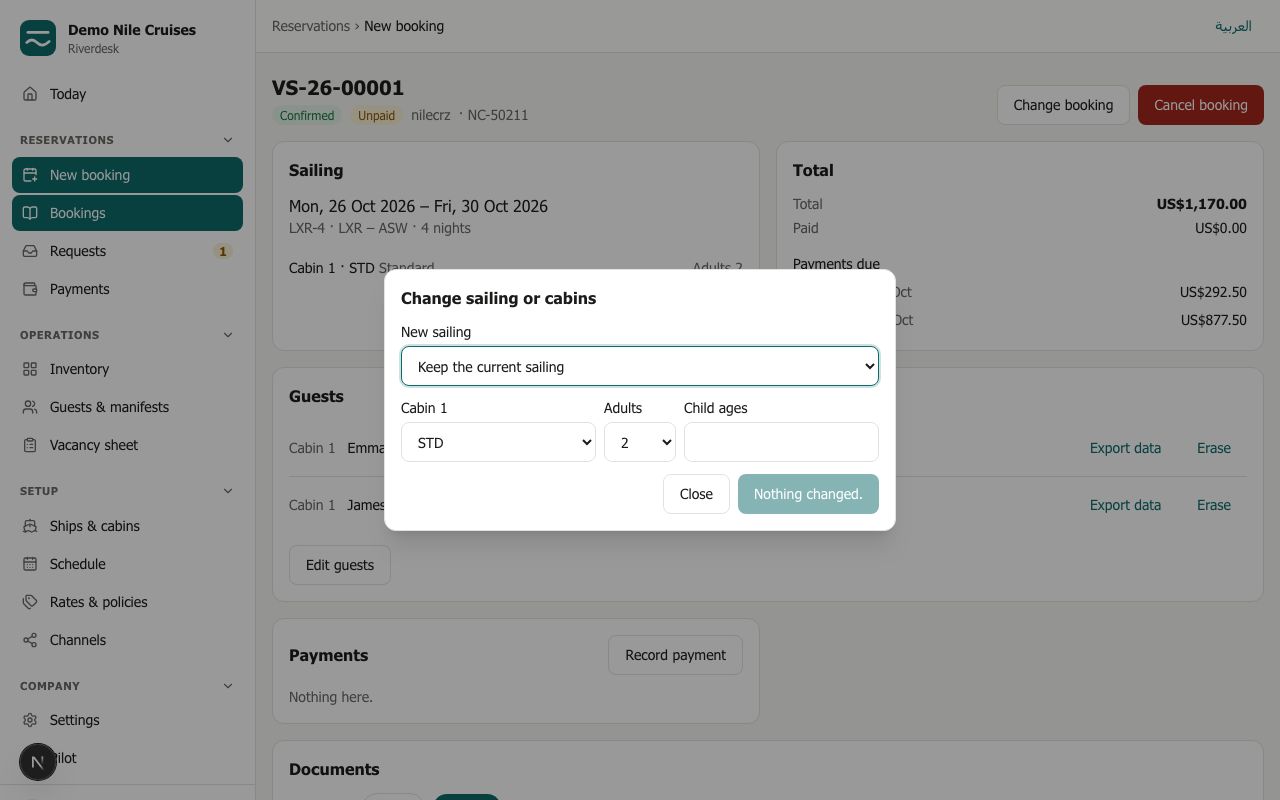
Change booking: a new sailing chosen, with the new total, the difference and the amendment fee Tell the guest or agency the price, then press Apply change. The old cabins are released and the new ones taken in the same step, so the guest is never without a cabin and never holds two. A new revision appears under Revisions, with the reason, the total, who changed it and when.
If the new total is higher, the difference and any amendment fee are added to what the guest owes, and Payments due on the booking updates. Refunds in Riverdesk follow a cancellation, so if a change lowers the total of a booking that is already paid, agree with finance how the difference is settled.
Correct guest details
Press Edit guests. You can change names, nationality, date of birth and passport for each guest, choose the cabin each one is in, and mark the lead guest. Press Save guests when you are done.
Do it before the manifest cut-off. Guest details can be changed until the cut-off, 7 days before embarkation by default. After that Riverdesk refuses the change, so that the manifest stays as it was sent.
A name correction is not a change of sailing or cabins, so you do not need Change booking for it.
Cancel a booking
Press Cancel booking. Before anything happens, Riverdesk shows what the cancellation costs, for example: Cancelling today (35 days before embarkation) keeps 25% of the total, with the amount. The share comes from the cancellation policy the booking was sold under, by the number of days before embarkation.
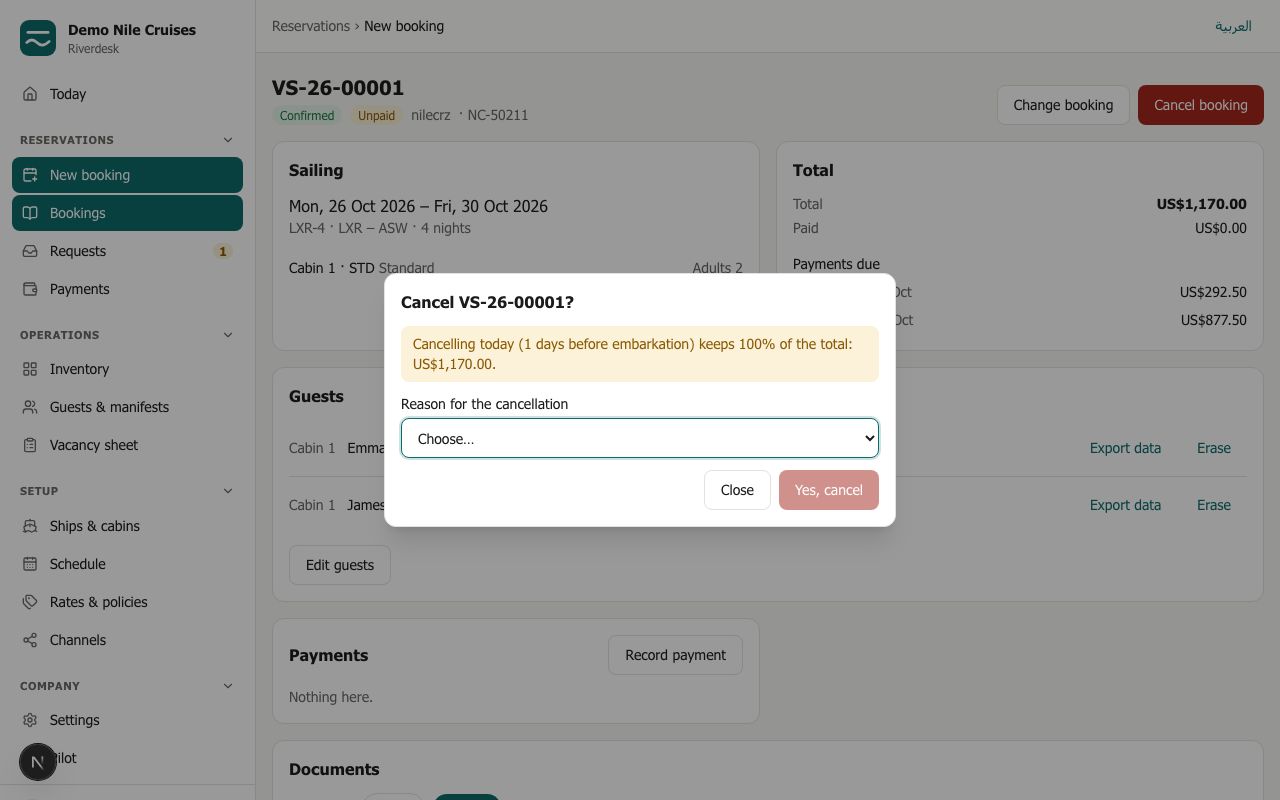
Cancel booking shows the penalty first, then asks for a reason Choose the reason. Pick it from the list, such as Guest asked to cancel, Agency asked to cancel, Illness or medical reason or Duplicate booking, or choose Other… and type it. The reason is kept on the booking.
Press Yes, cancel. The cabins return to sale at once, on every night of the cruise. The booking shows the penalty kept.
A direct booking that is still Waiting for payment has no penalty: Riverdesk says This booking is unpaid: no penalty applies.
Refund what is due
If the guest paid more than the penalty and any fees kept, the booking shows Refund due.
Press Refund on the booking (finance and owners). Riverdesk shows the amount still to refund: what was paid, minus the penalty and fees.
Enter the amount, method, reference and date, and save. Use the transfer number from your bank as the reference. The refund is a new line in the ledger; nothing is edited. Once the full amount is refunded, the booking shows Refunded.
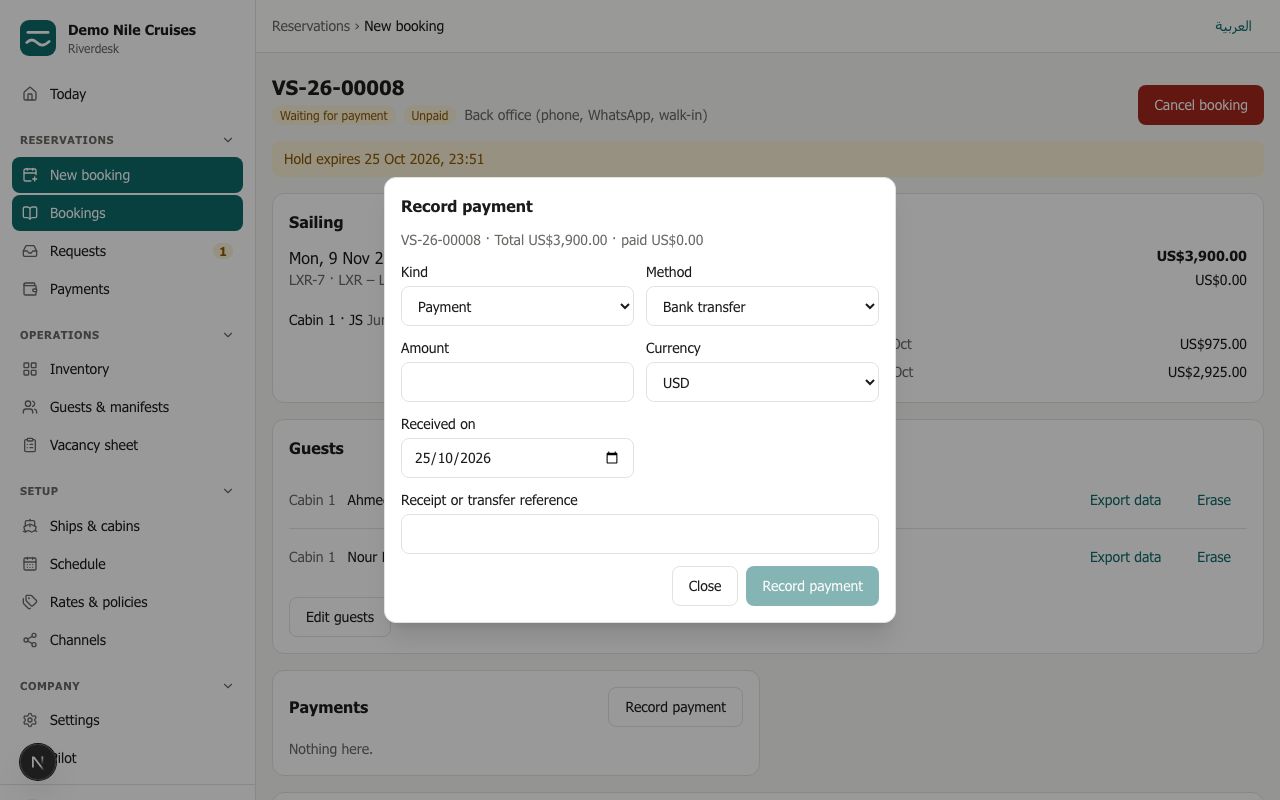
The payment dialog on a booking, where finance records payments and refunds
What channels are told
- Connected platforms, such as booking engines, online travel agencies or nilecrz, are told automatically when one of their bookings is changed or cancelled, and when free cabins change because of it. Their system reads the new booking and updates the guest.
- Agencies that are not connected learn nothing by themselves. Send them the new Voucher (agency copy, no prices) from Documents after a change, or confirm the cancellation and the penalty in writing.
- Direct guests need a new Voucher after a change, and the Payment schedule if the amount due changed.
What happens next
Changed bookings show their new dates on Guests & manifests and in the next manifest. If a change moved a booking inside the cut-off, the next automatic assignment gives it a cabin number. Cancelled cabins are back on sale for the office, the agencies and the platforms at once.