Check-in
Who boards each departure, the reception's check-in on a phone, the embarkation sheet, the police list and the registration cards.
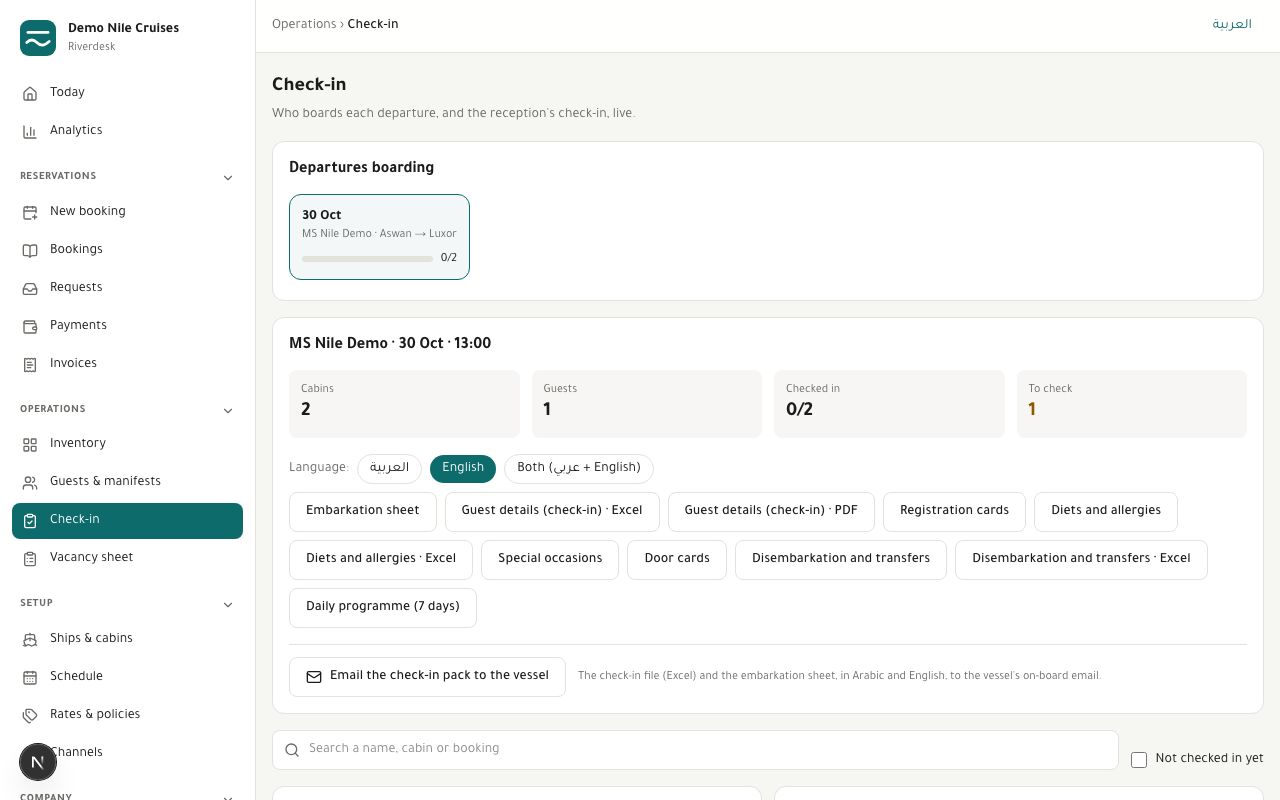
Check-in (under Operations) is the reception's screen for the gangway. It shows every departure with guests boarding in the next 7 days, then one departure cabin by cabin. It works on a phone or a tablet and refreshes itself every 15 seconds, so the office sees the desk's progress live.
A departure
At the top: cabins, guests, how many are checked in, and how many guests need a look at the desk (To check), with the special diets on board.
Each cabin card shows the guests with their nationality, diets, allergies, medical notes and special occasions, the arrival flight and, for the office, any balance still to collect. Under it, four buttons:
- Passports, Cards signed, Key: tick each as it happens.
- Check in: marks the cabin boarded (and ticks the three boxes). Undo check-in reverses it.
To check warns about a guest with no passport number on file, a passport that has expired, or one that expires within six months of the end of the cruise.
Search by name, cabin or booking reference, or tick Not checked in yet to see only who is still to board.
Documents
Choose the language (Arabic, English or both), then:
| Document | What it is |
|---|---|
| Embarkation sheet | The desk's printout, sorted by cabin: guests, booking and agency, arrival, balance to collect, tick boxes and a notes column, the diets and nationalities on board. No passport numbers |
| Guest details (check-in) | Every guest's full details for the police list and the reception, one row each: Excel or PDF. Contains passport numbers |
| Registration cards | One card per guest, pre-filled, two to an A4 page, signed at the desk. Contains passport numbers |
Documents with passport numbers need the right to download manifests, are kept for a day, and each download is recorded.
Sending to the vessel
Email the check-in pack to the vessel sends the guest details (Excel) and the embarkation sheet, in Arabic and English, to the vessel's on-board email within a minute. The last sends and whether they arrived are listed underneath.
Owners set each vessel's on-board email at the bottom of the screen and, if they want, send automatically, hours before each departure. Leave the hours empty to send only by hand.
The on-board login
Invite the vessel's purser or receptionist with the role On board and choose their vessel (Settings → People). They see only Check-in, only for that vessel: no cabin prices, balances or payments, and no other screen. They can tick guests in, download that vessel's check-in documents and charge extras to the cabins' folios.
Folios: extras on board
When a vessel keeps folios, a departure has two tabs: Check-in and Folios. Folios shows every cabin aboard with what it has spent so far, and the total for the departure.

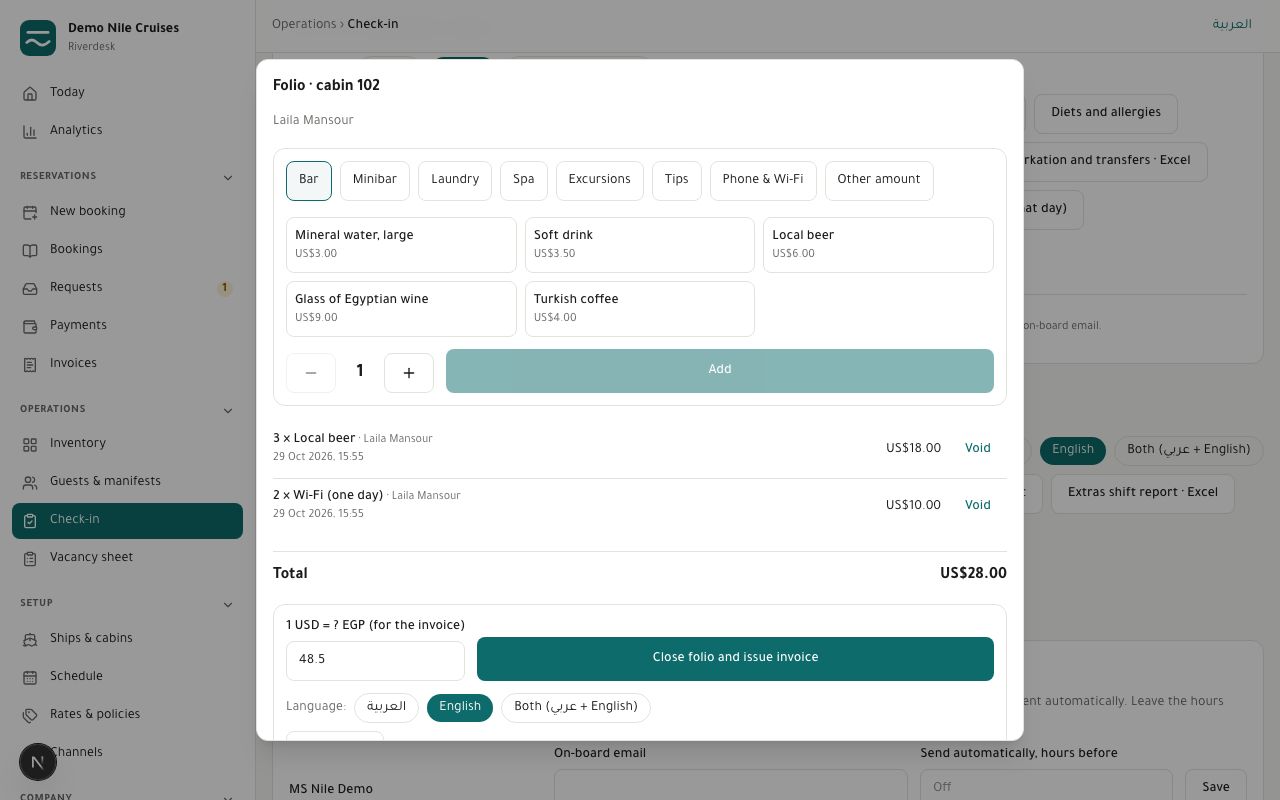
Tap a cabin to open its folio:
- Add a charge: choose the category (Bar, Laundry, Spa…), tap the item, set how many with − and +, pick the guest if you want, then Add. Other amount is for something not on the price list: type what it is and the price.
- Void: a charge posted by mistake is voided with a reason. It stays on the folio, crossed out, with who voided it and why; nothing is ever deleted.
The folio opens with its first charge. Charges are in the vessel's folio currency and keep the price they were posted at, even if the price list changes later. Every charge and void records who did it and when.
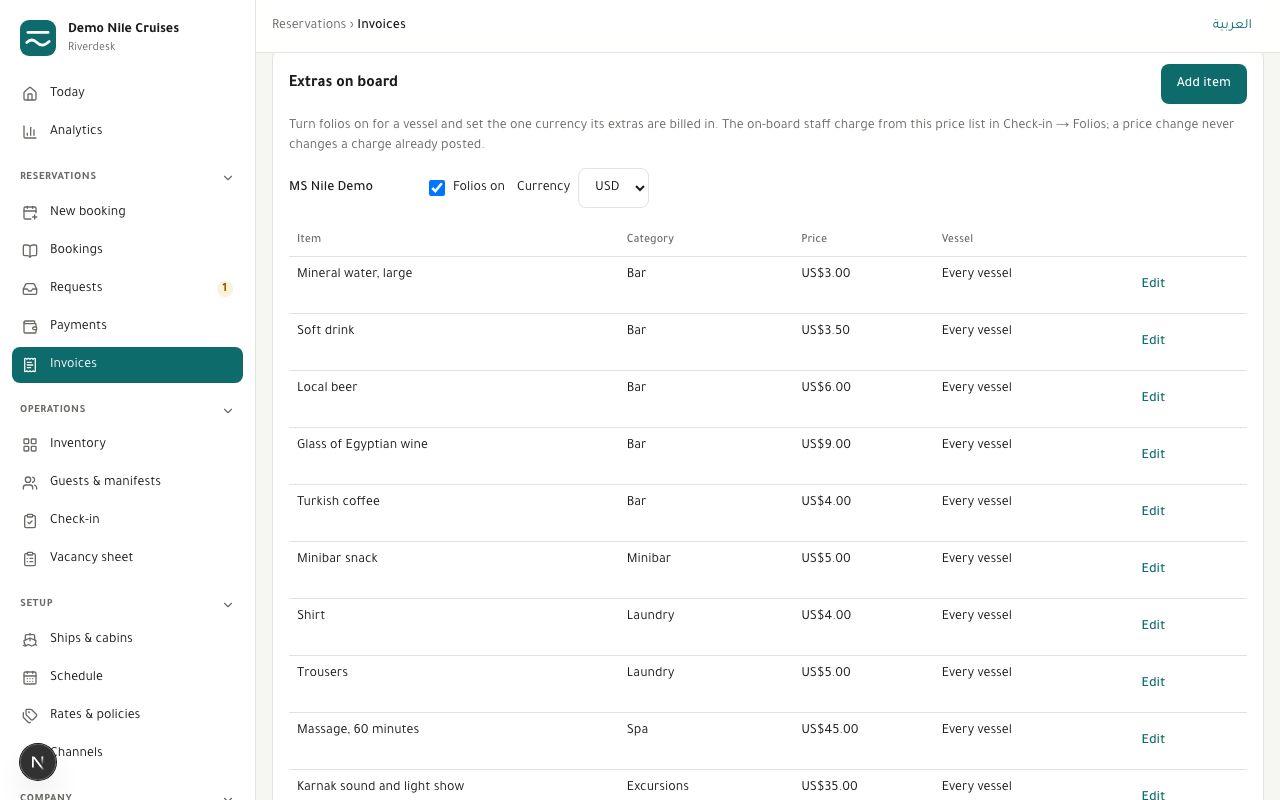
The price list, the vessels that keep folios and their currency are set by owners and finance staff in Invoices → Settings → Extras on board. Each item has a category, an Arabic and English name, a price, the vessel it is sold on (or every vessel) and, if you use them, a tax line.
Closing a folio and taking payment
Cabins whose cruise ends at this departure are marked Leaving. Before they go, open the folio:
- Who pays: the guest, or the booking's agency where its contract says the agency pays its guests' extras (Channels → Agency pays extras on the contract). Otherwise the guest always pays.
- Close folio and issue invoice. The folio becomes an invoice in your normal numbering, one line per category and day, with your tax lines. When the folio currency is not your base currency, type the rate (1 USD = ? EGP) for the invoice; the last rate used is filled in. Nothing more can be charged to a closed folio; a correction afterwards is a credit note on the invoice.
- Take payment (guest only): the balance is filled in. Choose cash or card and the currency. Paid in another currency, type the rate (1 USD = 48.50 EGP) and the screen shows what it covers. Part payments are fine; the badge turns Paid when nothing is left.
- Guest folio prints the folio for the guest: every charge by day, the invoice, the payments, the balance and a signature line.
A folio with nothing left on it (everything voided) closes with nothing to pay. A folio billed to the agency goes on the agency's invoices and statement and is paid with them.
Extras shift report (PDF or Excel), at the top of the Folios tab, is the purser's day on the vessel: charges by category, voids with their reasons, every payment taken at reception, the cash and card to hand over by currency, folios closed and still open.
A booking, or a cabin removed from it, cannot be cancelled while its folio has charges: close the folio first. Today lists folios still open on or after the cabin's last day aboard.
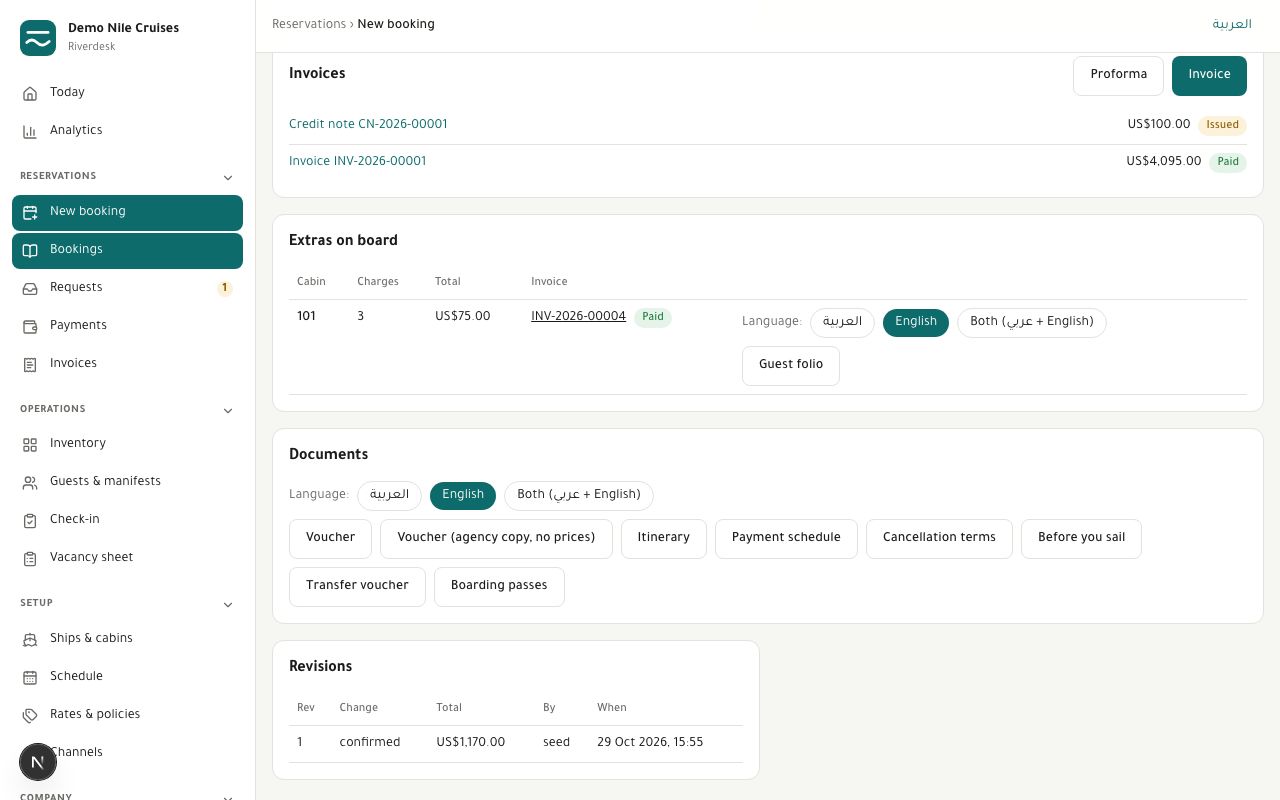
The office sees each booking's folios on the Booking page, under Extras on board: the cabin, what was charged, the invoice and what is still to pay, with the guest folio to print.
Where the details come from
Guests' check-in details are entered on the booking (Guests → Edit guests → Check-in details) or sent by connected platforms through the Channel API. All of them are optional. Visa numbers and medical notes are kept encrypted, like passport numbers, and every personal detail is erased with the passport after the cruise (see Settings → Passport retention).